
Securing Home WiFi in Texas Smart Homes: What Luxury Homeowners Must Know in 2026
Key Takeaways
Your router is the front door to every device in your home. In a luxury smart home with 30 to 50+ connected devices, that single entry point controls access to security cameras, door locks, thermostats, media systems, and your personal computers. Most Texas homes run on builder-grade ISP routers that were never designed for this kind of load or this level of risk.
Texas ranks second in the nation for cybercrime victims, according to the FBI. The six steps in this guide (replace your router, enable WPA3, segment your network with VLANs, lock down every device, add DNS filtering, and monitor continuously) will put your home network ahead of 95% of households. For whole-home luxury installs, professional configuration is worth the investment.
Your Texas Smart Home Is a Target. Here's Why.
Most WiFi security advice is written for someone with a laptop and a phone. That is not your home.
If you own a smart home in Dallas, Austin, Houston, or San Antonio, you probably have 30 to 50 connected devices. Lutron lighting keypads. A Control4 or Savant automation controller. Motorized shades. IP security cameras on every corner. A pool controller. A media room with dedicated streaming hardware. Maybe a wine cellar monitor.
Every single one of those devices connects through your WiFi router. And every one of them is a potential entry point for someone who wants access to your network.
The 40-Device Problem Nobody Talks About
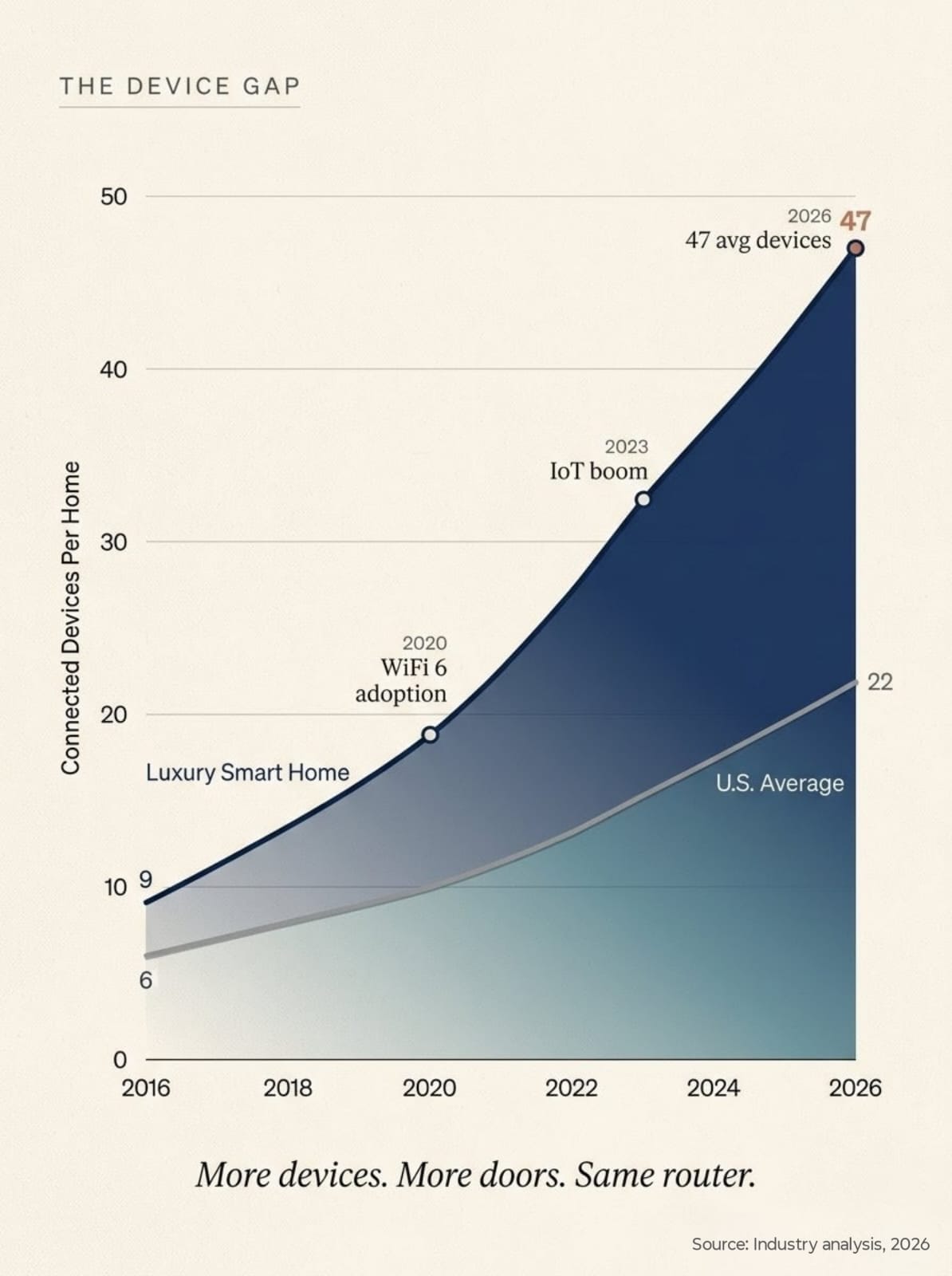
The average American household now has roughly 22 connected devices, according to Bitdefender research. A luxury smart home in Highland Park or Westlake Hills can easily triple that number. Here is what the math looks like:
Why Texas Ranks #2 for Cybercrime Victims
The FBI Internet Crime Complaint Center reported that American cybercrime losses exceeded $20 billion in 2025, a 26% increase over the prior year. California, Texas, and Florida recorded the highest number of victims.
Texas is not just a target because of its population size. The state has seen direct attacks on water systems, hospital networks, and local governments. A January 2025 cyberattack on Matagorda County forced a disaster declaration. A 2024 breach at Texas Tech University Health Sciences Center in El Paso compromised data for 1.4 million people. The Texas Department of Information Resources estimates roughly 40,000 unfilled cybersecurity positions across the state.
These are not abstract threats. They are happening in your communities, and home networks are often the weakest link.
Not sure where your home network stands? SEIITS offers a no-obligation smart home technology assessment for Texas homeowners.
How Hackers Actually Get Into Home WiFi Networks
Understanding the attack is half the defense. Most homeowners imagine hackers sitting in a van outside their house. The reality is less dramatic but far more common.
Default Credentials and the Builder-Grade Router Problem
According to IBM research, 86% of people have never changed their router's default admin password. That password is often printed on a sticker on the bottom of the device, or it is publicly documented online. In Texas new construction, the problem is worse. Builders typically install whatever router the ISP (AT&T Fiber, Spectrum, or Google Fiber) provides during the final walkthrough. These ISP routers use widely known default credentials, have limited security features, and were designed for a household of five devices, not fifty.
Firmware Exploits and Zero-Day Vulnerabilities
Router manufacturers release firmware patches to fix known security flaws. But 89% of home users never install a single update, according to Broadband Genie research. That means millions of routers are running software with documented, publicly available vulnerabilities. Hackers do not need to discover new exploits. They just scan for routers still running the old ones.
Lateral Movement: From Your Smart Bulb to Your Bank Account
Real attack chain example: A hacker exploits a vulnerability in an unpatched smart camera. The camera sits on the same flat network as your laptop. From the camera, the attacker scans internal traffic, discovers your home office computer, and intercepts credentials for your brokerage or email. The camera was the door. Your financial accounts were the destination.
This is called lateral movement, and it is the reason network segmentation (covered in Step 3) matters so much for smart homes. On a flat, unsegmented network, a single compromised device gives an attacker a path to everything.
Secure Home WiFi Step 1: Replace Your Builder-Grade Router
The most impactful thing you can do for your home WiFi security in 2026 is stop relying on the router your ISP gave you. That box was free for a reason.
Why ISP Routers Fail Texas Smart Homes
ISP-provided routers (the AT&T BGW320, Spectrum Wave 2, Google Nest WiFi) are designed for basic residential use. They lack several features that matter for security and performance in a connected luxury home: VLAN support for network segmentation, advanced firewall rules, reliable handling of 40+ simultaneous device connections, enterprise-grade WPA3, and automatic firmware updates that actually happen on time.
What to Look for in a 2026 Router
For a Texas smart home with 30+ devices, you need a router (or router and access point system) that supports: WiFi 6E or WiFi 7, WPA3-Personal or WPA3-Enterprise, VLAN tagging, automatic firmware updates, built-in SPI firewall, and a management interface that a professional integrator can configure and monitor remotely.
Router Categories for Smart Homes
For most luxury Texas homes, an enterprise-grade system is the right choice. The upfront cost is higher, but the security ceiling is significantly above what consumer gear provides. And a professional integrator can configure it correctly the first time.
Secure Home WiFi Step 2: Enable WPA3 Encryption
WPA3 is the current gold standard for WiFi encryption in 2026. If your router supports it, turn it on. If it does not, that alone is a reason to upgrade.
WPA3 vs. WPA2: What Actually Changed
WPA3 introduced three major security improvements. First, it uses a process called Simultaneous Authentication of Equals (SAE), which makes brute-force password attacks nearly impossible. Second, it provides forward secrecy, meaning that even if someone cracks your password later, they cannot decrypt previously captured traffic. Third, it encrypts each device session individually, so a compromised smart speaker cannot be used to eavesdrop on your laptop. Full technical details are available from the Wi-Fi Alliance WPA3 specification.
WPA3 Transition Mode for Older Smart Home Devices
Some older smart home devices (particularly pre-2020 IoT sensors and certain Sonos speakers) do not support WPA3. If you have a mixed ecosystem, use WPA2/WPA3 Transitional Mode. This allows older devices to connect via WPA2 while newer devices benefit from WPA3 protections. Over time, replace legacy devices that cannot support modern encryption.
Secure Home WiFi Step 3: Segment Your Network with VLANs
This is the single most underrated WiFi security measure for smart homes. It is also the step that separates a professionally secured network from a DIY setup.
What Network Segmentation Means (and Why Your Smart Home Needs It)
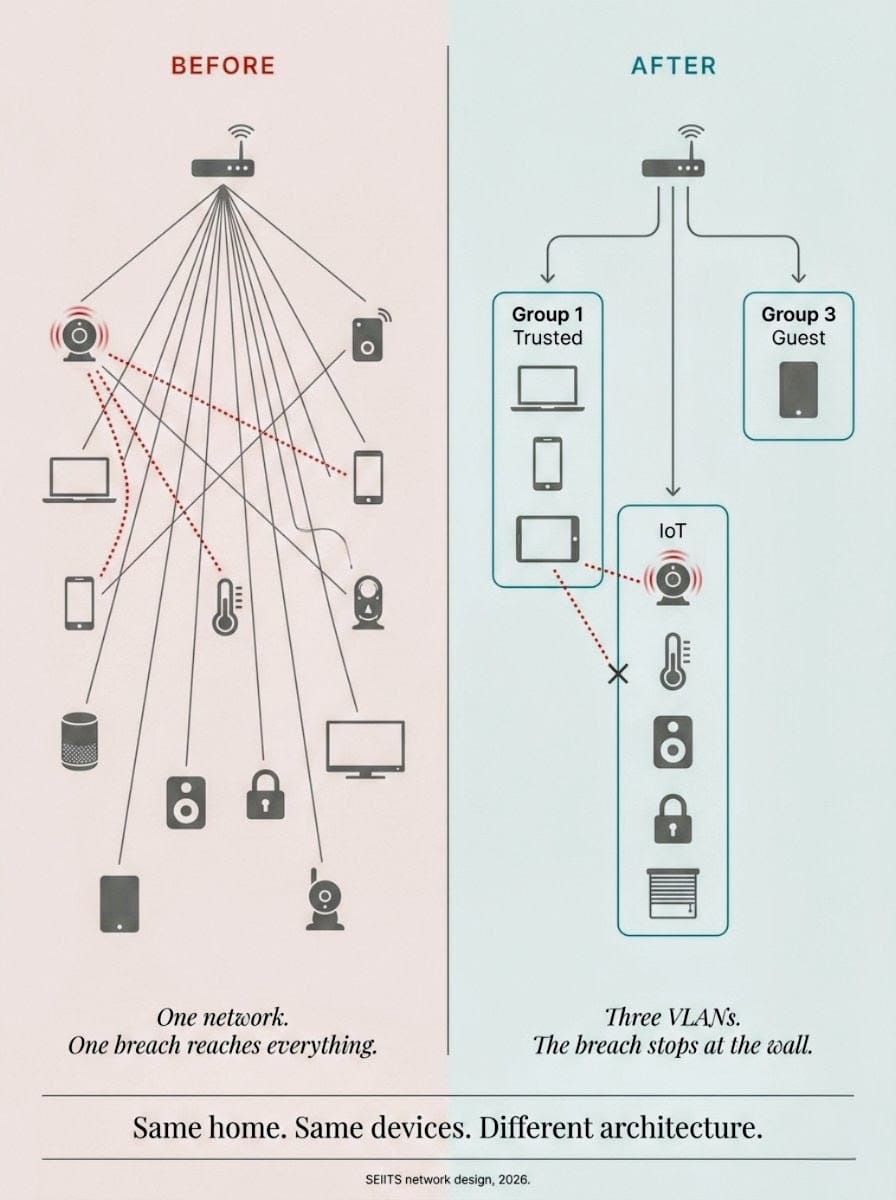
Network segmentation divides your home WiFi into isolated zones. Devices in one zone cannot see or communicate with devices in another zone unless a firewall rule explicitly allows it. Think of it as putting your security cameras in one locked room, your personal computers in another, and your guest devices in a third. If someone breaks into one room, the other doors are still locked.
The Three-VLAN Model for Luxury Homes
How VLAN Segmentation Stops Lateral Attacks
Without VLANs, a compromised security camera on your network can scan and reach your home office laptop. With VLANs, that camera is on a completely separate network. Even if it is hacked, the attacker hits a wall. They cannot see your personal devices, your financial data, or your work files. The firewall between VLANs allows only the specific traffic you approve (for example, your Control4 app on your phone talking to the Control4 processor on the IoT VLAN).
Setting up VLANs requires an enterprise-grade router or firewall (Ubiquiti, Araknis, or a dedicated appliance like a Firewalla Gold) and a managed network switch. This is not something most homeowners should DIY. A misconfigured VLAN can break smart home functionality or, worse, create a false sense of security with gaps in the isolation.
Secure Home WiFi Step 4: Lock Down Every Connected Device
Your router is the front gate. But every device on your network is a window. Lock them all.
Change Default Credentials on Every Device
This includes devices you might not think about: your network switch, your Lutron bridge, your NVR (network video recorder), your Sonos controller, your irrigation system. If it has a login, change the default username and password. Use a password manager to generate and store unique credentials for each device.
Firmware Update Schedules for Smart Home Ecosystems
Set a quarterly calendar reminder to check for firmware updates on every device category: router, switches, access points, cameras, smart home controllers, and IoT hubs. Critical security patches should be applied within 72 hours of release. For Control4, Savant, and Crestron systems, firmware updates typically require a certified dealer or integrator to apply safely, since a bad update can disable your entire automation system.
Disabling Dangerous Features: WPS, UPnP, and Remote Management
Three features ship enabled on most routers that create known security holes. The FTC and CISA both recommend turning all three off unless you have a specific, documented reason to keep them.
WPS (WiFi Protected Setup) allows devices to connect via a button press or PIN instead of a password. The PIN is vulnerable to brute-force attacks. Disable it. UPnP (Universal Plug and Play) lets devices automatically open ports on your router, which malware actively exploits. Disable it. Remote management allows access to your router settings from outside your network. Unless a professional integrator needs this for managed service, disable it.
Secure Home WiFi Step 5: Add DNS Filtering and Firewall Protection
DNS filtering blocks malicious websites and phishing domains at the network level, before any device on your network can reach them. It is one of the highest-impact, lowest-effort security layers you can add.
DNS Filtering: Block Threats Before They Reach Your Network
When any device on your network tries to visit a website, it first queries a DNS server to translate the domain name into an IP address. A DNS filter checks that domain against a blocklist of known malicious sites, phishing pages, and malware distribution servers. If it matches, the connection is blocked before it ever reaches the device.
Hardware Firewalls for Residential Networks
Your router has a built-in SPI firewall. For most homes, that is sufficient if it is enabled. For luxury smart homes with high device counts and sensitive data, a dedicated hardware firewall (Firewalla Gold, Ubiquiti Dream Machine Pro, or a pfSense appliance) adds deeper packet inspection, intrusion detection, and granular traffic rules that go far beyond what consumer routers provide. The NIST Cybersecurity Framework recommends layered defenses as a core principle for protecting connected environments.
Secure Home WiFi Step 6: Monitor Your Network Continuously
Security is not a one-time setup. It is an ongoing process. The guides that tell you to change your password and walk away are leaving out the most important part.
Why Set-and-Forget Fails for Smart Homes
Smart home devices are constantly communicating. Your cameras stream to cloud servers. Your thermostat checks weather APIs. Your voice assistant sends data to Amazon or Apple. New vulnerabilities are discovered weekly. If you configure your network once and never look at it again, you are running on a snapshot of security that gets weaker every day.
Intrusion Detection for Residential Networks
An intrusion detection system (IDS) monitors traffic patterns on your network and flags anomalies. If your security camera suddenly starts uploading 10 GB of data to an unfamiliar server in Eastern Europe, an IDS catches it. Hardware appliances like Firewalla and the Ubiquiti Dream Machine Pro include built-in IDS capabilities.
The Case for Professional Network Monitoring
Most Texas homeowners do not want to spend their Saturday reviewing firewall logs. That is where professional network monitoring comes in. A managed service handles firmware updates, monitors for unusual traffic, responds to security alerts, and keeps your network configuration current as you add or replace devices. For a home with 30+ connected devices and a whole-home automation system, this is not a luxury; it is the equivalent of a home security monitoring service, but for your digital perimeter.

If your network has fewer than 15 devices and you need a professional security audit, a single SEIITS service call covers the full evaluation and configuration. Starting at $498.
WiFi Security Tips for Smart Homes: The Texas Checklist
Texas smart homes face specific conditions that generic security guides overlook. Use this checklist alongside the six steps above.
How Much Does Professional Home Network Security Cost in Texas?
Nobody else publishing WiFi security guides will tell you this. Here is what professional network security actually costs for a Texas luxury home.
DIY vs. Professional: What You're Really Paying For
You can buy an enterprise router and watch YouTube tutorials. Some homeowners do. But the value of professional installation is not just the hardware. It is correct VLAN configuration, proper firewall rules, verified firmware schedules, and the knowledge that a misconfigured access control list will not silently break your entire home automation system. For a Control4 or Savant home, this is particularly important: one wrong network setting can take down lighting, shades, and security in every room simultaneously.
SEIITS Network Security Service Tiers

View full membership details and pricing at
What SEIITS Covers Across Texas
SEIITS provides smart home technology and network security services across Texas, with primary coverage in four major metro areas:
Dallas-Fort Worth: Highland Park, University Park, Preston Hollow, Southlake, Westlake, Colleyville, Frisco, Prosper, Celina, McKinney, Plano, Allen, and surrounding communities.
Austin: Westlake Hills, Rollingwood, Barton Creek, Lake Travis, Bee Cave, Dripping Springs, Lakeway, and surrounding Hill Country communities.
Houston: River Oaks, Memorial, West University Place, Bellaire, The Woodlands, Sugar Land, Katy, and surrounding communities.
San Antonio: Alamo Heights, Terrell Hills, The Dominion, Boerne, New Braunfels, and surrounding communities.

Explore Our Service Page
Secure Your Home WiFi in 2026: Summary
Your home WiFi is the foundation of your digital life. In a luxury smart home, it is also the foundation of your physical security, comfort, and privacy. The six steps in this guide (replace your ISP router, enable WPA3, segment with VLANs, lock down devices, add DNS filtering, and monitor continuously) address the real threats facing Texas homeowners in 2026.
If you have a home with fewer than 15 devices, the first four steps are manageable as a weekend project. If you have a whole-home automation system with 30+ connected devices, professional configuration is not optional; it is how you protect a six- or seven-figure technology investment.

Ready to secure your home network? Start with a free SEIITS smart home technology assessment. We will evaluate your current setup, identify vulnerabilities, and recommend the right level of protection for your home.
Frequently Asked Questions About Home WiFi Security in 2026
How do I secure my home WiFi from hackers in 2026?
Start with six foundational steps: replace your ISP router with an enterprise-grade alternative, enable WPA3 encryption, segment your network into VLANs (separating personal devices from IoT and guest traffic), change default credentials on every connected device, add DNS filtering to block malicious domains at the network level, and set up ongoing monitoring for unusual traffic patterns. For homes with 30+ devices, professional configuration significantly reduces the risk of misconfiguration.
What is the best WiFi security protocol for smart homes?
WPA3-Personal is the best available encryption for home WiFi in 2026. It resists brute-force attacks through SAE authentication, provides forward secrecy, and encrypts each device session independently. If some older devices cannot support WPA3, use WPA2/WPA3 Transitional Mode. Avoid WPA (TKIP) and WEP entirely; both can be cracked in minutes with freely available tools.
Is WPA3 compatible with older smart home devices?
Most devices manufactured after 2020 support WPA3. Older IoT devices, including some first-generation smart speakers, early Sonos models, and legacy smart plugs, may not. The solution is WPA2/WPA3 Transitional Mode on your router, which lets older devices connect over WPA2 while newer devices use WPA3. Plan to replace devices that cannot support WPA3 over the next 12 to 18 months.
How do hackers get into home WiFi networks?
The most common methods are exploiting default admin credentials on routers, taking advantage of unpatched firmware vulnerabilities, brute-forcing weak WiFi passwords, and performing lateral movement through compromised IoT devices. In Texas, war-driving (scanning for vulnerable networks from a vehicle) is documented in urban and suburban neighborhoods across DFW, Austin, and Houston.
What is network segmentation and do I need it?
Network segmentation divides your home WiFi into isolated zones using VLANs (Virtual Local Area Networks). Devices in one zone cannot communicate with devices in another unless specifically permitted. For a smart home with cameras, automation controllers, and personal computers, segmentation prevents a compromised IoT device from reaching your sensitive data. If you have 20 or more connected devices, segmentation is strongly recommended.
How many devices can a home router safely handle?
ISP-provided routers typically handle 10 to 15 devices reliably. Prosumer routers (ASUS, TP-Link high-end) manage 25 to 40. Enterprise-grade systems (Ubiquiti, Ruckus, Araknis) support 60 to 200+ devices with stable performance. Luxury Texas smart homes with whole-home automation regularly exceed 40 devices, making enterprise-grade hardware the appropriate choice.
Should I hide my WiFi network name (SSID)?
Hiding your SSID provides minimal security benefit. Any attacker with basic scanning tools can discover hidden networks in seconds. Worse, hidden SSIDs cause your devices to broadcast the network name as they search for it. Focus your effort on strong WPA3 encryption, a complex password, and proper network segmentation instead.
How often should I update my router firmware?
Enable automatic updates if your router supports them. If not, check for updates quarterly at minimum. Apply critical security patches within 72 hours of release. For Control4, Savant, and Crestron systems, firmware updates should be handled by a certified integrator to avoid breaking automation programming.
What is DNS filtering and how does it protect my home?
DNS filtering blocks malicious websites at the network level before any device can connect to them. When a device requests a domain known for phishing, malware distribution, or data theft, the DNS filter blocks the connection entirely. Options range from free services like Cloudflare 1.1.1.1 for Families to customizable platforms like NextDNS and Cisco Umbrella.
Can smart home devices like cameras and thermostats be hacked?
Yes. Smart cameras, thermostats, door locks, and voice assistants are regular targets. Many IoT devices run minimal operating systems with infrequent security updates. Bitdefender research (bitdefender.com) found that the average IoT device has 25 known vulnerabilities. Network segmentation, firmware updates, and strong credentials are the primary defenses.
How much does professional home network security cost in Texas?
Costs vary by scope. A single network security audit and configuration typically starts around $498 for homes with fewer than 15 devices. Whole-home network design with VLAN segmentation, enterprise hardware, and ongoing monitoring ranges higher depending on home size and device count. SEIITS offers tiered service options from single service calls to full membership plans with ongoing support.
What is the difference between a guest network and a VLAN?
A guest network is a separate WiFi name and password that provides basic isolation from your main network. A VLAN is a more granular segmentation technology that creates fully isolated network zones with firewall rules controlling traffic between them. Guest networks are adequate for visitor access. VLANs are necessary for properly isolating IoT devices, automation controllers, and sensitive personal devices from each other.
Comments ()